HealthCheck Assistance

To install and configure the Healthcheck is a simply process. The required steps are detailed below.
Login to the ENPS Server using an account with administration privileges.
Copy the zip file containing the Healthcheck onto the server to be monitored. Before extracting the .zip file, right-click on the file and select 'Properties'. On the General tab, select 'Unblock' if the option is present to unblock all files, then click 'OK'.
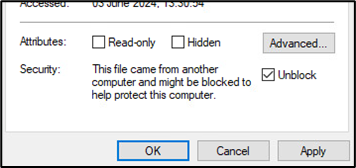
Copy the extracted folder containing the Healthcheck (for example"C:\ HealthCheck_Ext_v4-20230329.2\") and run the “Install_Upgrade_HC.ps1” script to install the Healthcheck. To run the script, right-click on the script and select 'Run with PowerShell'.
After the installation script completes, the Customer Communications Utility will automatically launch. This will allow you to enter the required account information for the notifications to be sent via email, Slack or MS-Teams. If you need to exit the utility or if you wish to configure communications at a later time, the utility can be relaunched at any time from C:\HealthCheck_v4\Customer_Comms_Configurator.ps1.
Once you have completed the installation, you can delete the installer folder from the C: drive to avoid confusion with the installed Healthcheck folder.
Email Notifications
The Health Check supports SMTP Relays to email notifications to selected recipients. Your SMTP server provider should be able to provide most of the information you need to configure email notifications. We recommend gathering the following information before starting this process:
--Recipient E-mail Address: The e-mail address to which you want Healthcheck alerts and notifications to be sent – this may be a mailing list.
--Sender Address: The e-mail address from which the Healthcheck notifications will be sent.
--SMTP Server Address: The address of the SMTP server. For example: smtp.mycompany.com.
--SMTP Server Port: The submission port for the SMTP server. For example: 587
--SMTP Account Username: The username of the SMTP server account. For internal SMTP relays this will often not be required – your e-mail administrator should be able to advise on this.
--SMTP Account Password: The password of the SMTP server account. For internal SMTP relays this will often not be required – your e-mail administrator should be able to advise on this.
The Customer Communications Utility will ask you select which of the above you would like to configure – select those which are applicable:
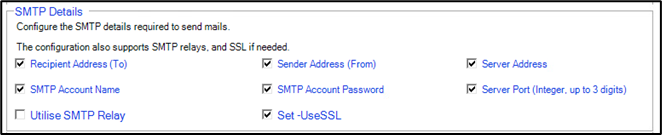
The 'Set -UseSSL' option is selected by default and should only be deselected if you are not using a secure connection to your SMTP server/relay, for example http:// vs. https://.
When you select ‘OK’ you will be prompted to enter the details selected above. You can rerun the Customer Communications Utility at any time to change these details. You can also select ‘View Config’ to see the current configuration, and ‘Send Test Message’ to test the current configuration.
If you do not have access to an existing SMTP server, there are several online services that will provide SMTP relay functionality for little or no cost. Once you have registered with one of these services, there should be an option in the dashboard or settings that references ‘SMTP’. Selecting this should take you to a page with the information required by the Healthcheck.
Slack and/or Teams Notifications
It is also possible to send notifications to MS Teams and Slack. The configuration of these third-party systems to receive the notifications is outside the scope of the Healthcheck. However, to enable these channels, the same utility as above is run.
The following page has instructions to configure Slack and MS-Teams webhooks which are required to these channels.
For deeper, supplier instructions, the following can be accessed.
To receive Healthcheck notifications in Slack, the Healthcheck configuration will require a Slack webhook address. Details of how to set this up can be found here: Slack webhooks information.
To receive Healthcheck notifications in MS Teams, the Healthcheck configuration will require an MS Teams webhook address. Details of how to set this up can be found here: MS Teams webhook information
$global:HC_Customer_Slack_Startup_Messages = $true # Enable startup Slack messages to customer(startup)
$global:HC_Customer_MSTeams_Startup_Messages = $true # Enable startup MS Teams messages to customer(startup)
Finally, in the \configurables\hc-custom_config.ps1 if the system does not use Solr, set the following key to $false:
$global:HC_NOM_Search_Engine_Solr